How to Turn on Unknown Sources on Firestick
Unlocking the full potential of your Firestick often involves enabling “Unknown Sources,” a crucial step for installing apps beyond the Amazon Appstore. This guide will walk you through the process, ensuring you can make the most of your Firestick, whether it’s for IPTV subscriptions, additional IPTV services, or other apps.

Why Should You Activate Unknown Sources for Apps on Firestick?
If you’re new to Firestick, you might question the need to enable the “unknown sources” setting. Amazon, by default, disables the installation of apps from the internet on Firestick, a measure taken to uphold the device’s security and integrity.
However, there are valid reasons to consider enabling this setting. It opens the door to a wider array of apps, some not found on the official Amazon Appstore. This expanded access allows for greater customization and flexibility in your Firestick experience. Nevertheless, caution is key. Installing apps from unknown sources carries potential security risks. It’s advisable to download apps only from trusted sources to safeguard your device and personal data.
Related reading: How to Clear Cache on Firestick: Step-by-Step Guide
How to Turn on Unknown Sources on Firestick
Activating this feature on a Firestick may seem daunting to some, but truth be told, it’s a simple and uncomplicated process. Follow the steps outlined below to enable Unknown Sources on your Amazon Firestick or Fire TV device.
- We first suggest installing the Downloader App on your device.
- From the home screen of your Firestick or Fire TV, hover over the Settings icon.
- Click My Fire TV.

- Click Developer options.
Note: Please see the notes below if you don’t see Developer Options on your screen.
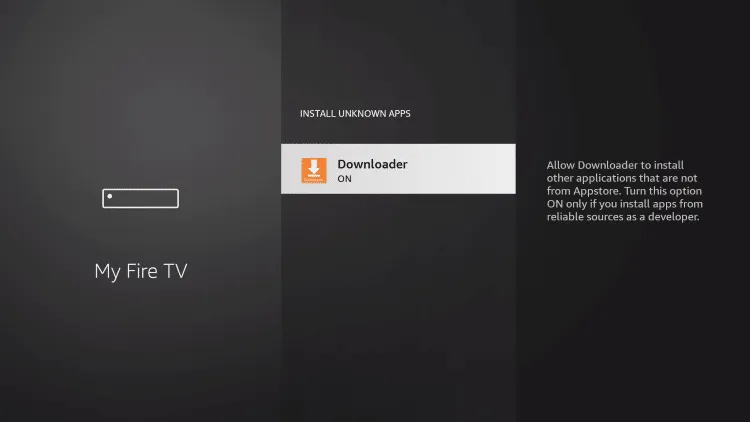
- Click Install unknown apps.

- Find the Downloader app and click it.
 If you don’t see the Downloader app on this screen that means you need to install it from the Amazon App Store.
 - This will turn Unknown Sources to On for the Downloader app. You will now be able to sideload apps on your device!
Why Can’t I Find Developer Options on My FireStick?
As mentioned previously, if you are unable to find developer options within the settings follow the instructions below to allow Unknown Sources.
- Hover over the Settings icon and click My Fire TV.

- Click About. You will notice developer options is nowhere to be found.

- Hover over Fire TV Stick and click the OK button on your remote 7 times to become a developer.

- After clicking 7 times you will eventually see a message stating “You are already a developer.”

- Next, click the back button on your remote and you will notice developer options is now showing on My Fire TV.
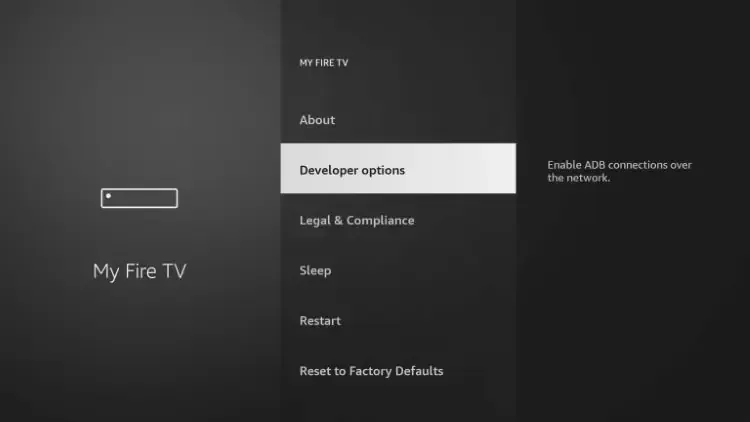
- That’s it! After allowing for Unknown Sources on your Firestick, you can now side-load hundreds of 3rd party apps using Downloader.
Unknown Sources on Firestick(2015 Interface)
- From the Fire TV or Fire TV Stick’s home screen, scroll to “Settings”.

- Next, scroll to the right and select “My Fire TV”. (It may be listed as “Device” on older models).

- Next, scroll down and select “Developer options”.

- Then select “Apps from Unknown Sources” to turn the option to “ON”.

- Lastly, select “Turn On” from the popup message that appears.

Video tutorial – Fire TV Stick: How to Enable Unknown Sources
This video tutorial guides you on enabling unknown sources on your Fire TV Stick, allowing you to install apps from outside the official Amazon Appstore.
How to Turn Off Unknown Sources on Firestick
Disabling unknown sources on Firestick is a straightforward process. Here’s how you can turn off this setting:
- Go to the home screen of your Firestick.
- Navigate to the “Settings” option using the remote control.
- Select “My Fire TV” or “Device” (depending on your Firestick model).
- Scroll down and choose “Developer Options.”
- Inside the Developer Options, you will find the “Apps from Unknown Sources” toggle switch.
- Toggle the switch to the “Off” position to disable the unknown sources.
By following these steps, you can easily turn off the unknown source setting on your Firestick and restrict the installation of apps from external sources.

3-Day IPTV Free Trial
- 1000+ Live Channels & 3000+ VODs
- EPG TV Guide (Grid, Classical, Normal)
- Plus with 7-day Catch Up & Cloud PVR
- Reliable & Stable Server
- Supported to Android & Firestick
- 3 days Free Trial, No Credit card
- IPTV Instant Activation
Get free IPTV test.
Related reading: How to Get an IPTV Free Trial of XtrixTV
FAQs about Firestick Unknown Sources
Why is there no unknown sources on Firestick?
1. Navigate to the Settings icon and select “My Fire TV.”
2. Click on “About.”
3. Although you won’t find “Developer Options” at this point, hover over “Fire TV Stick” and press the OK button on your remote seven times to activate developer mode.
4. You’ll see a message confirming that “You are already a developer.”
5. Now, go back to the previous screen using the back button on your remote, and you’ll find “Developer Options” displayed under “My Fire TV.”
Once you’ve allowed “Unknown Sources” on your Firestick, you can sideload a variety of third-party apps using Downloader.
How do I allow unknown sources on Fire TV Stick?
2. From the home screen of your Firestick or Fire TV, navigate to the “Settings” icon.
3. Click on “My Fire TV.”
4. Select “Developer options.”
5. Click “Install unknown apps.”
6. Locate the “Downloader app” and select it. If you don’t see the Downloader app, you may need to install it from the Amazon App Store.
This process will enable “Unknown Sources” for the Downloader app, allowing you to sideload apps on your Fire TV Stick.
How do I allow unknown APK on FireStick?
1. Install the “Downloader App” from the Amazon App Store.
2. Navigate to “Settings” on your FireStick.
3. Select “My Fire TV.”
4. Choose “Developer options.”
5. Click on “Install unknown apps.”
6. Find the “Downloader app” and enable it.
Now, you can sideload unknown APKs using the Downloader app on your FireStick.
Is it safe to allow unknown sources on Fire TV Stick?
Here are some safety tips:
1. Use Trusted Sources: Only download apps from reputable sources to minimize the risk of malware or malicious software.
2. Check App Permissions: Review the permissions requested by apps before installing them to ensure they are reasonable and relevant to the app’s functionality.
3. Update Regularly: Keep your Fire TV Stick and installed apps up to date to patch security vulnerabilities.
4. Install Antivirus Software: Consider installing antivirus or security software on your Fire TV Stick for added protection.
5. Disable After Use: If you no longer need to install apps from unknown sources, it’s a good practice to disable this feature to reduce potential security risks.
Ultimately, the safety of enabling unknown sources on Fire TV Stick depends on your discretion and how responsibly you use it.
Conclution
Enabling Unknown Sources on Firestick opens up a world of possibilities. You can now explore a wider range of apps, enhancing your IPTV service, and accessing a broader spectrum of content. Remember to exercise caution and only download apps from trusted sources. With this newfound freedom, your Firestick becomes a versatile entertainment hub, tailored to your preferences and needs.